Executive Summary
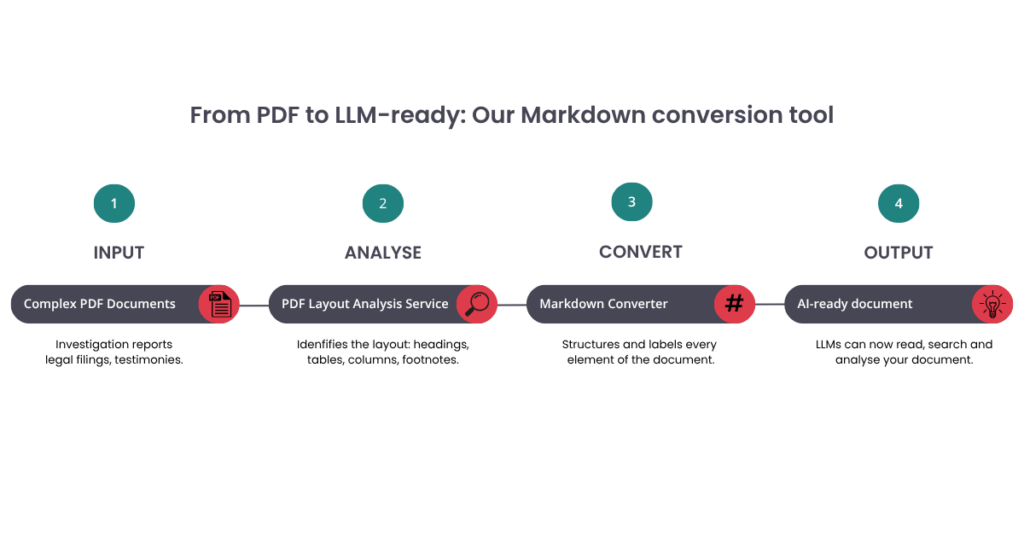
To address the challenges associated with processing and categorising large collections of documents for human rights work, HURIDOCS has developed a PDF Document Layout Analysis Service that includes a layout-aware Markdown conversion tool with built-in translation. This makes it easier to convert complex documents into structured, AI-ready Markdown.
Standard PDF parsing tools produce chaotic, structureless text that degrades AI performance. Our service uses advanced visual models to preserve reading order, extract tables, and semantically structure content. In benchmarking against leading tools, our VGT model achieved 95.4% accuracy, outperforming Marker, Docling, and MinerU, while remaining competitive on processing speed.
Key capabilities include:
- structured Markdown output optimised for retrieval-augmented generation (RAG) pipelines,
- built-in translation across multiple languages using local Ollama models, keeping sensitive documents on-premises,
- granular segmentation metadata (bounding boxes, content types, page numbers) for precise AI citations,
- HTML export for web-based workflows,
- flexible deployment via Docker, with CPU and GPU support.
The service is open-source and available on GitHub. It will soon be piloted into Uwazi, HURIDOCS’ flagship human rights documentation platform.
In 2024, we introduced our PDF Document Layout Analysis Service to help users extract structured information from complex documents. This article presents the latest developments.
If you’ve ever built a retrieval-augmented generation (RAG) pipeline or an “AI PDF Chat” application, you know the hard truth of document AI: PDFs are an absolute nightmare to parse.
Standard libraries often extract text as a giant, structureless string. Reading order gets scrambled, multi-column layouts merge into gibberish, and tables become an unreadable mess of floating numbers. If you feed this chaotic text into large language models (LLMs), your retrieval quality plummets, and your chatbot starts hallucinating.
To move beyond anecdotal frustration, we benchmarked several document layout analysis models on a representative dataset:
| Model | Mistakes | Accuracy |
| VGT | 261 | 95.44% |
| Marker | 387 | 93.23% |
| MinerU | 434 | 92.41% |
| Docling | 495 | 91.36% |
| YOLOv8x | 566 | 90.24% |
| LightGBM | 879 | 84.67% |
| DeepDoc | 1157 | 81.24% |
The results show that differences in layout analysis quality are substantial, and that those differences have real consequences for downstream tasks such as retrieval, question answering, and structured information extraction.
What ultimately pushed us to build this tool wasn’t just technical frustration, more than that, it was the reality of the work we support. As a human rights organisation, we collaborate with partners who deal with vast collections of documents: investigation reports, legal filings, testimonies, and archival material. These are often stored as PDFs, and extracting meaningful, structured information from them is essential for analysis, accountability, and advocacy. When document parsing fails, it doesn’t just degrade model performance; it slows down the critical work we do.
At HURIDOCS, we’ve spent over four decades helping human rights defenders manage and make sense of complex information. As our tools evolve to incorporate machine learning, the need for clean, structured, and multilingual data has only become more urgent. A foundational step toward this goal is our PDF Document Layout Analysis Service which includes our layout-aware Markdown conversion with built-in translation. It enables organisations to reliably transform messy documents into usable knowledge, powering workflows from classification and search to insight generation, across languages and contexts.
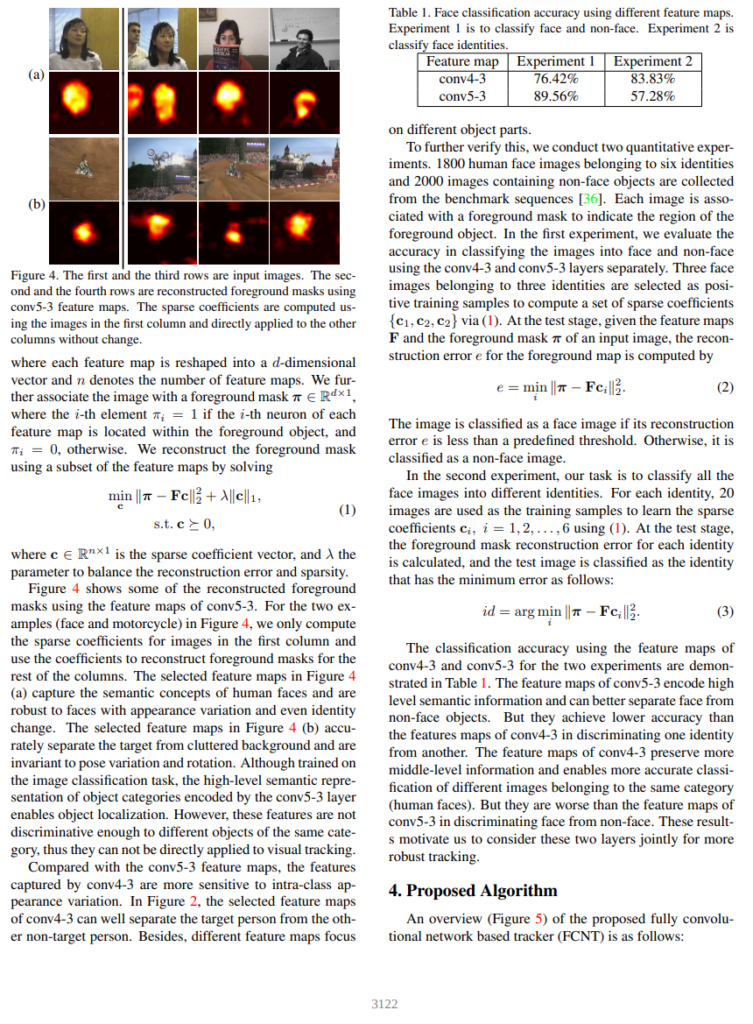
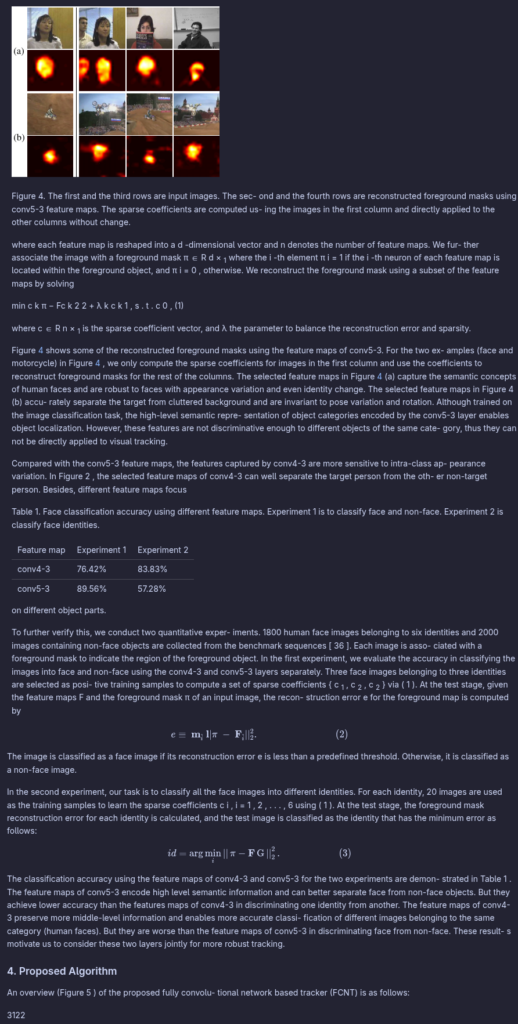
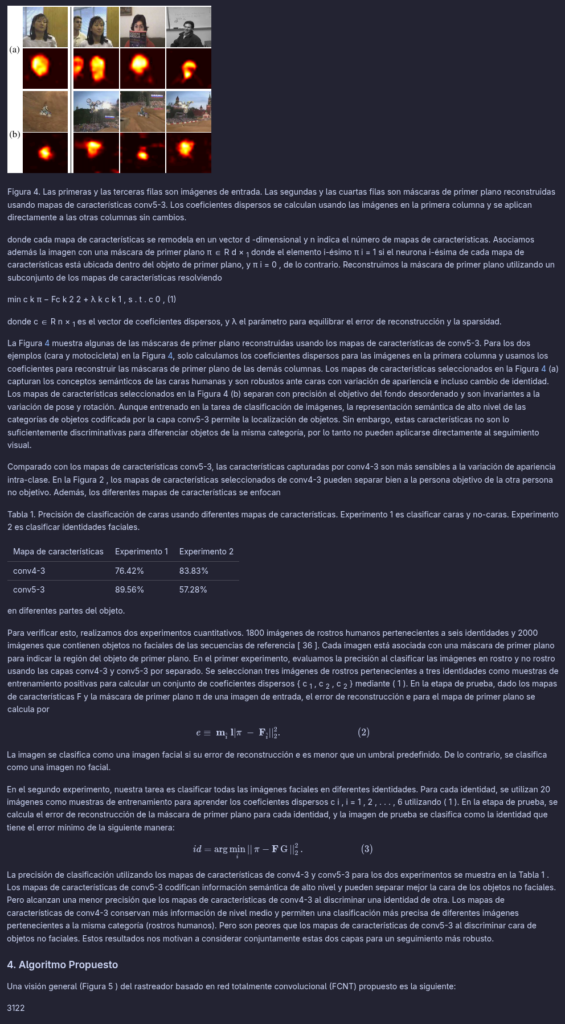
Below is an example of how this service works. The first image shows the output of the segmentation and the type detection, the second image shows the Markdown converted version of this page, and the last image shows the markdown converted version, also translated to Spanish (using the gpt-oss model from Ollama):
Why Markdown is the gold standard for RAG and AI ingestion
LLMs love Markdown. It uses text-based markers to define structure, meaning LLMs can easily distinguish between a header (# Header), a list item (* List item), and a table (| Table |).
By converting your PDFs to Markdown before feeding them into your vector database or LLM context window, you unlock several major benefits:
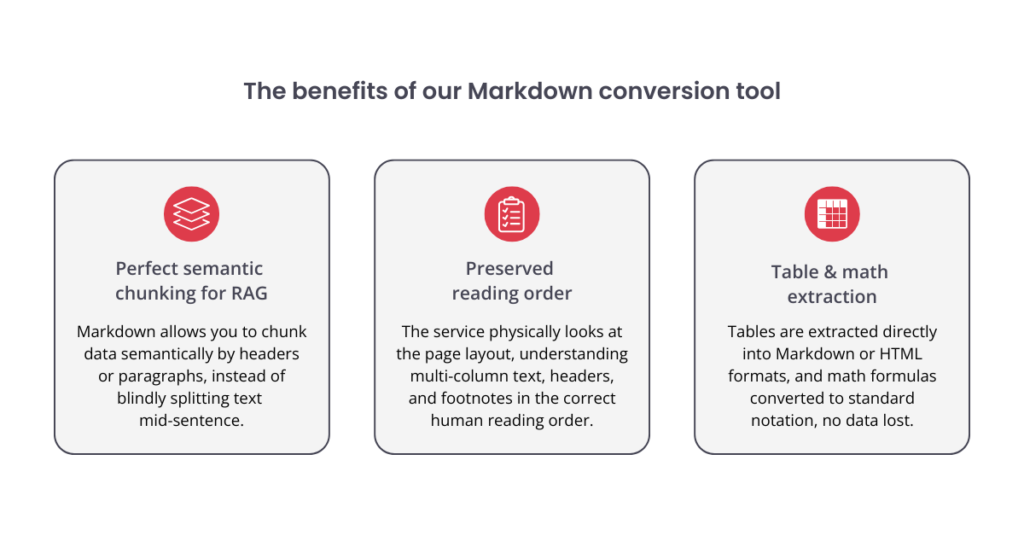
- Perfect semantic chunking for RAG: Instead of blindly splitting text every 500 tokens (which often cuts sentences in half), Markdown allows you to chunk data semantically by headers (#, ##) or paragraphs.
- Preserved reading order: Our service uses advanced visual models (Vision Grid Transformer) or fast XML-based models (LightGBM) to physically “look” at the page layout. It understands multi-column text, headers, and footnotes, assembling them in the correct human reading order.
Table and math extraction: Instead of losing tabular data, our tool can extract tables directly into Markdown/HTML formats, and even convert math formulas into standard LaTeX, making complex data instantly understandable for the LLM.
Integrating multilingual support and translation
What happens if your RAG pipeline needs to index a massive archive of Spanish legal documents, but your users are querying in English? You could rely on the LLM to translate contexts on the fly, but that consumes massive amounts of prompt token (making the system slower and significantly more expensive to run).
Our Markdown converter tool handles this natively. When you convert a PDF to Markdown, you can specify target languages. The service uses Ollama models (like gpt-oss) to translate the Markdown segment-by-segment. You can use any model you want as long as it is supported by Ollama, either local or a cloud one.
- Privacy first: Because it uses local AI, highly sensitive documents never leave your server.
- Layout preserved: The translation strictly follows the Markdown syntax, meaning translated headers stay as headers, and translated tables stay perfectly formatted.
- Multi-lingual vector search: You can instantly index the exact same document across multiple languages in your vector database.
Benchmarking translation models
To find the perfect model for our service, we conducted extensive benchmarking. Historically, translation quality has been measured using BLEU scores. However, BLEU mostly measures n-gram overlaps and correlates poorly with human judgment, especially for semantically accurate but structurally different translations.
We shifted to a modern, neural-metric evaluation stack using:
- XCOMET-XL (3.5B): An explainable neural metric model by Unbabel that predicts human judgments.
- wmt23-cometkiwi-da-xl (3.5B): A reference-free translation evaluation model.
- BLEURT: A BERT-based model from Google Research optimised for semantic similarity.
- BERTScore: Measures similarity at the token level using contextual embeddings.
We calculate the “Average Score” by taking the average of these methods.
The data
We used two datasets for evaluation:
- Helsinki-NLP dataset: 8,000 sentence samples across Arabic-to-English, English-to-Spanish, English-to-French, and English-to-Russian.
- Our custom PDF dataset: 1,691 paragraph-level samples extracted directly from complex human rights PDF documents translated cross-lingually (sourced from CEJIL, IHRDA, OHCHR and Plan International).
See the documents in the custom PDF dataset here.
We used DeepL as our baseline for “state-of-the-art” translation. Here is how the local models performed based on our comprehensive metric average:
Helsinki-NLP dataset results
(Sample size: 8000 sentences)
| Model | Average Score | Total Time (s) |
| DeepL (API Baseline) | 79.84 | 3749.07 |
| bytedance-seed-x-ppo-7b-gptq-int8 | 79.75 | 4077.01 |
| nllb-200-3.3B | 77.78 | 2912.45 |
| huihui_ai/hunyuan-mt-abliterated:7b | 77.76 | 3094.56 |
| aya:35b | 77.62 | 96875.48 |
| gpt-oss | 75.72 | 37045.49 |
| llama3.1 | 71.34 | 2870.2 |
Our custom PDF dataset results
(Sample size: 1691 paragraphs)
| Model | Average Score | Time Per Sample (s) |
| bytedance-seed-x-ppo-7b-gptq-int8 | 82.57 | 1.94 |
| aya:35b | 80.33 | 39.93 |
| huihui_ai/hunyuan-mt-abliterated:7b | 80.33 | 1.31 |
| gpt-oss | 79.93 | 7.83 |
| nllb-200-3.3B | 79.03 | 1.39 |
For more information about these benchmarks, see our report here.
How it works (with code)
Our microservice comes with a user-friendly Gradio Web UI, but for RAG pipelines, you’ll want to use the REST API.
Here is how you ingest a PDF, extract the table of contents, convert it to Markdown, and translate it to Spanish and French concurrently:
Shell
curl -X POST http://localhost:5060/markdown \
-F ‘file=@/path/to/your/research_paper.pdf’ \
-F ‘extract_toc=true’ \
-F ‘output_file=document.md’ \
-F ‘target_languages=Spanish, French’ \
-F ‘translation_model=gpt-oss’ \
–output ‘document_package.zip’
The endpoint doesn’t just return a raw text file. It returns a fully structured .zip package designed for data pipelines:
None
document_package.zip├── document.md # Source English Markdown
├── document_Spanish.md # Translated Spanish Markdown
├── document_French.md # Translated French Markdown
├── document_segmentation.json # The secret weapon for RAG
└── document_pictures/ # Extracted images for multimodal RAG
├── document_1_1.png
While the Markdown file is great for direct LLM context, the JSON file (document_segmentation.json) is pure gold for advanced RAG implementations. It gives you the exact bounding boxes and classification for every single piece of content:
JSON
[{
“left”: 72.0,
“top”: 84.0,
“width”: 451.2,
“height”: 23.04,
“page_number”: 1,
“text”: “Introduction to AI”,
“type”: “Title”
},
{
“left”: 72.0,
“top”: 120.0,
“width”: 451.2,
“height”: 200.0,
“page_number”: 1,
“text”: “Retrieval-Augmented Generation is…”,
“type”: “Text”
}
]
With this metadata, your ingestion script knows exactly which page a chunk of text came from. You can append this metadata to your vector database embeddings, allowing your AI chatbot to provide exact page citations (e.g., “According to page 1, under Introduction to AI…”).
Tip: You can write a two-line Python script to instantly strip out all Page header and Footnote noise, leaving you with perfectly clean Text, Title, Section header and Table data for your LLM or RAG pipeline.
Python
# Assuming your data is loaded as a list of dictionaries named ‘data’clean_data = [item for item in data if item[“type”] in [“Text”, “Title”, “Section header”, “Table”]]
text_only = “\n\n”.join(item[“text”] for item in clean_data)
Expanding output formats: HTML conversion
While Markdown is the primary focus for LLM ingestion, we recognise that different workflows have different requirements. For users who need to preserve more complex styling or integrate documents into web-based platforms, the service also supports HTML output.
Through either the web interface or the dedicated /html API endpoint, you can generate clean, semantic HTML. This is particularly useful for building internal document viewers or when your RAG system needs to render source documents in a way that is natively compatible with web browsers, without losing the structural insights provided by our layout analysis. Here is how you can convert your documents to HTML:
Shell
curl -X POST http://localhost:5060/html \
-F ‘file=@/path/to/your/research_paper.pdf’ \
-F ‘extract_toc=true’ \
-F ‘output_file=document.html’ \
-F ‘target_languages=Spanish, French’ \
-F ‘translation_model=gpt-oss’ \
–output ‘document_package.zip’
The structure of the output is going to be the same as the markdown endpoint.
Under the hood: Built on clean architecture and docker
The service is fully open-source and easily deployable via Docker. It supports both CPU-focused, high-speed LightGBM models and highly accurate GPU-supported visual VGT models for complex documents.
As it is isolated in a container, it fits perfectly as the first ingestion step in orchestrators like LangChain, LlamaIndex, or your custom Python backend.
Both model types are trained on the DocLayNet dataset, a large-scale document layout analysis dataset containing over 80,000 document pages.
Document categories
The models can identify and classify 11 distinct content types:
| ID | Category | Description |
| 1 | Caption | Image and table captions |
| 2 | Footnote | Footnote references and text |
| 3 | Formula | Mathematical equations and formulas |
| 4 | List item | Bulleted and numbered list items |
| 5 | Page footer | Footer content and page numbers |
| 6 | Page header | Header content |
| 7 | Picture | Images, figures, and graphics |
| 8 | Section header | Section and subsection headings |
| 9 | Table | Tabular data and structures |
| 10 | Text | Regular paragraph text |
| 11 | Title | Document and chapter titles |
Dataset characteristics
- Domain Coverage: Academic papers, technical documents, reports
- Language: Primarily English with multilingual support
- Quality: High-quality annotations with bounding boxes and labels
- Diversity: Various document layouts, fonts, and formatting styles
How it performs against existing tools
We didn’t just build these models in a vacuum. We actively benchmarked VGT and LightGBM against some of the most popular PDF extraction tools in the open-source community, including Marker, Docling, MinerU, and fine-tuned YOLO models.
Using a highly rigorous benchmark semantic dataset, we evaluated the models on three failure points: missed labels, wrong segmentation boundaries, and incorrect token typing.
Find the dataset created and used for this benchmark here.
Accuracy Comparison
| Model | Mistakes | Accuracy |
| VGT | 261 | 95.44% |
| Marker | 387 | 93.23% |
| MinerU | 434 | 92.41% |
| Docling | 495 | 91.36% |
| YOLOv8x | 566 | 90.24% |
| LightGBM | 879 | 84.67% |
| DeepDoc | 1157 | 81.24% |
The takeaway: VGT is the undeniable winner for complex document segmentation, outperforming heavy hitters like Marker and Docling by significantly reducing wrong token types and missed labels.
(Note: We even tested Marker integrated with LLMs like Llama 3.1 and Phi-4, but interestingly, this did not yield better layout accuracy.)
You can find more details about this table here.
Speed and hardware efficiency comparison
| Model | Hardware | GPU Memory | Speed (s/page) |
| LightGBM | Intel i7-14700K | N/A | 0.04s |
| YOLOv10m | RTX 4070 Ti Super | varies | 0.013s |
| Docling | RTX 4070 Ti Super | ~1.7 GB | 0.39s |
| VGT | RTX 4070 Ti Super | ~4.2 GB | 0.34s |
| Marker | RTX 4070 Ti Super | ~3.2 GB | 0.44s |
| MinerU | RTX 4070 Ti Super | ~5.0 GB | 0.60s |
| VGT | GTX 1070 (Older GPU) | ~4.2 GB | 1.75s |
The takeaway
- For pure speed: If you are running on CPUs, our LightGBM model processes pages at 0.04 seconds per page (on a modern i7), obliterating the CPU times of other heavy models like deepdoc (0.34s) or CPU-run Docling (0.61s).
- For accuracy: When running on a strong modern GPU (RTX 4070 Ti Super), VGT not only offers the highest accuracy in the 95.4% range, but it also processes pages incredibly fast (0.34s/page) – faster than Marker, MinerU, and Docling on the same hardware config.
Get Started
All the source code, API documentation, and setup instructions are available on our GitHub repository: HURIDOCS PDF Document Layout Analysis on GitHub
Getting the service running on your own machine is straightforward. The only prerequisite is having docker installed; it’s free and available for Linux, macOS, and Windows.
Step 1: Install Docker
Before you can run the service, you need Docker installed and running on your machine.
- Windows & macOS: Download and install Docker Desktop. Once installed, launch the application and wait for the “Docker is running” status icon to appear in your taskbar or menu bar.
- Linux: Install Docker via your distribution’s package manager. After installation, ensure the Docker service is started.
Tip: On Windows and Mac, the terminal commands in this guide will only work if the Docker Desktop app is open and running in the background. If you get an error saying the “Docker daemon is not running,” just open the app and try again.
Step 2: Clone the repository
Open a terminal (on Windows, you can use PowerShell or Command Prompt) and run:
Shell
git clone https://github.com/huridocs/pdf-document-layout-analysis.gitcd pdf-document-layout-analysis
This downloads the project and moves you into its folder.
Step 3: Start the service
shell
make start
This command uses a Makefile, which is just a shortcut for running several setup commands at once (usually involving Docker).
- Linux: may need to install make
- Windows: use WSL, Chocolatey, or MSYS2 if make isn’t available
- macOS: make is already installed
Note: Even though you can run the service in macOS, the visual (VGT) model may not be able to work properly and can take a lot of time even for a simple document. Using the service with Fast Mode is recommended in macOS.
Windows shortcut:
Instead of running the service through make, you can also simply double-click run.bat, or run:
.\run.ps1 start
Optional: Enable GPU support (faster processing)
To use GPU acceleration, your system should have an NVIDIA GPU with at least 4 GB of free memory available. Setup depends on your operating system:
Linux (Recommended for GPU use)
You’ll need the NVIDIA Container Toolkit, which allows Docker to use your GPU.
Install it by following NVIDIA’s official instructions.
Once installed, Docker will be able to access your GPU automatically.
Windows
GPU support works through Docker Desktop, but requires a bit of setup:
- Install the latest NVIDIA drivers for your GPU
- Make sure Docker Desktop is installed and running with WSL2 enabled
- Ensure your system supports GPU acceleration (WSL2 + compatible GPU)
- Once everything is set up, Docker containers can use your GPU.
MacOS
GPU acceleration with NVIDIA is not supported on macOS.
You’ll need to run the service CPU only.
Tip: If you enable GPU support after the service is already running, make sure to stop it (Step 5) and start it again for the changes to take effect. On Windows, it is also recommended to restart Docker Desktop entirely after installing new drivers to make sure the hardware is correctly recognised.
Step 4: Open the interface
Once the service is running, open your browser and go to:
- Web UI: http://localhost:7860
This is the easiest way to use the tool. Just upload a PDF and see the results instantly – no coding required. - API: http://localhost:5060
This is for developers who want to integrate the service into their own apps or workflows. You can also see the full API Reference and Usage Examples.
Step 5: Stop the service
When you’re done, stop everything with:
shell
make stop
If you use Docker Desktop, you can also find the running container in the app, and click the Stop button under the Actions tab.
We invite developers and researchers to contribute to this open-source project. We welcome contributions in the form of code, documentation, or feedback. To get involved, please reach out to the authors or directly engage with the project on GitHub or Hugging Face.
And if you are building RAG applications with our tool we’d love to hear about it! Drop a star on the repo or let us know how your AI ingestion pipeline has improved.
HURIDOCS is a Geneva-based NGO that builds documentation technology and develops strategies that support the global human rights community with securing justice. Since 2016, our team has been working to bring machine learning into Uwazi, our flagship tool for building databases of human rights information. As part of this work, our machine learning specialists have been working on a range of open-source AI models to build upon and include as features inside Uwazi.
This article on our PDF Markdown Analysis tool is part of a series to highlight HURIDOCS’ machine learning work. Be sure to check out our upcoming article on the PDF Table of Contents Extractor. These machine learning services will be piloted into Uwazi and we will share information on when they will be available as features for all users of Uwazi.